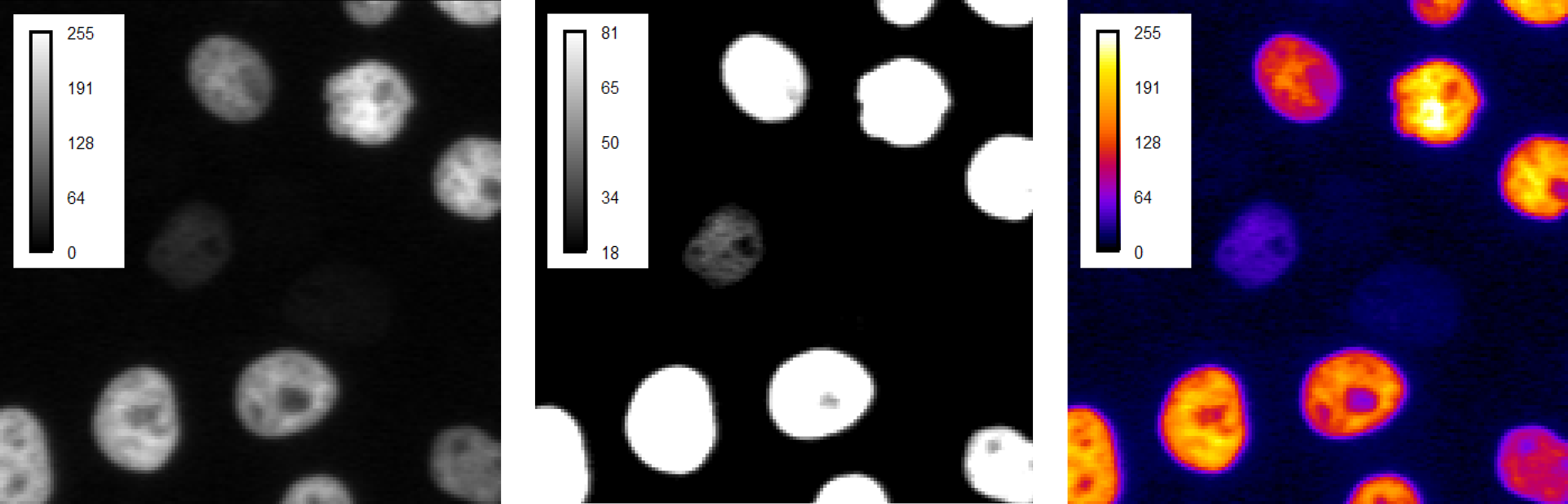
Images are a collection of a lot (millions) of values, which is information that is hard to process for our human brains. Thus, one typically assigns a color to each distinct value, by means of a mapping. There is no fix recipe for how to adjust this mapping from numbers to colors. It is easy to choose a mapping that hides certain information in an image, while emphasizing other information. Thus, configuring this mapping properly is a great responsibility that scientists have to take on when presenting their image data.
Prerequisites
Before starting this lesson, you should be familiar with:
After completing this lesson, learners should be able to:
Understand how the numerical pixel values of an image are transformed into bright and colorful images that you see on display screen.
Understand what a colormap is and why adjusting it is useful.
Understand how perception about image content changes on viewing it by altering contrast and colormaps
Use display settings responsibly for scientific purposes.
Concept map
graph TD
V("Image pixel value") --> L("Colormap")
L --> |does not change|V
L -->|changes| C("Displayed pixel color & brightness")
Figure
Left: Image displayed with a grey colormap using complete intensity display range (i.e. full bit depth). Middle: Same image and same colormap but using a different intensity display range. Right: Same image shown with a multicolor colormap. All images have color mapping bar as an inset.
Colormaps do the mapping from a numeric pixel value to a color. This is the main mechanism how we visualize microscopy image data. In case of doubt, it is always a good idea to show the mapping as an inset in the image (or next to the image).
Nomenclature
Color mapping may have different names depending upon the software. Fiji uses the term “Look-up table (LUT)”, whereas MATLAB sticks to “colormap”. In some other communities/software, it is also called as “color transfer function”.
Single color colormaps
Single color colormaps are typically configured by choosing one color such as, e.g., grey or green, and choosing a min and max value that determine the brightness of this color depending on the value of the respective pixel in the following way:
brightness( value ) = ( value - min ) / ( max - min )
In this formula, 1 corresponds to the maximal brightness and 0 corresponds to the minimal brightness that, e.g., your computer monitor can produce.
Depending on the values of value, min and max it can be that the formula yields values that are less than 0 or larger than 1.
This is handled by assigning a brightness of 0 even if the formula yields values < 0 and assigning a brightness of 1 even if the formula yields values
larger than 1. In such cases one speaks of “clipping”, because one looses (“clips”) information about the pixel value (see below for an example).
Both pixel values will be painted with the same brightness as a brightness larger than 1 is not possible (see above).
Multicolor colormaps
As the name suggests multi color colormaps map pixel gray values to different colors.
For example:
0 -> black
1 -> green
2 -> blue
3 -> ...
Typical use cases for multicolor colormaps are images of a high dynamic range (large differences in gray values) and label mask images (where the pixel values encode object IDs).
Sometimes, also multicolor colormaps can be configured in terms of a min and max value. The reason is that multicolor colormaps only have a limited amount of colors, e.g. 256 different colors. For instance, if you have an image that contains a pixel with a value of 300 it is not immediately obvious which color it should get; the min and max settings allow you to configure how to map your larger value range into a limited amount of colors.
To visualize an image there are several colormaps to choose from.
Depending upon the use-case, one can be more appropriate than another.
In this activity, we will look at commonly used colormaps and discuss how and when to use them.
# %%
# Using different Lookup Tables (LUTs) in napari
importnaparifrombioioimportBioImage# %%
# Read an image and its metadata
# from OpenIJTIFF import open_ij_tiff
# image, *_ = open_ij_tiff("https://github.com/NEUBIAS/training-resources/raw/master/image_data/xy_8bit__nuclei_high_dynamic_range.tif")
img_obj=BioImage('https://github.com/NEUBIAS/training-resources/raw/master/image_data/xy_8bit__nuclei_high_dynamic_range.tif')img=img_obj.data# or img_data = img_obj.data
print(f'Axes order = {img_obj.dims.order}')# %%
# Instantiate the napari viewer
viewer=napari.Viewer()# %%
# Add the image
viewer.add_image(img)# %%
# Napari:
# Activity: Adjust the contrast limits and colormap to see dim and bright regions in the same image
# Right click on "contrast limits" and adjust to see the brightest regions & dim nuclei
#
# Appreciate the such a multi-color LUT can be useful to see dim and bright regions
# %%
# Programatically show the image several times with different LUT settings
viewer.layers.clear()# remove all layers
# viewer.add_image(image, name="image_turbo", colormap="turbo", contrast_limits=[0,255])
## Display full bit-depth range
viewer.add_image(img,name="image_gray_1",colormap="gray",contrast_limits=[0,255])viewer.layers["image_gray_1"].bounding_box.visible=Trueviewer.layers["image_gray_1"].colorbar.visible=True## Display bright objects
viewer.add_image(img,name="image_gray_2",colormap="gray",contrast_limits=[130,255])viewer.layers["image_gray_2"].bounding_box.visible=Trueviewer.layers["image_gray_2"].colorbar.visible=True## Display dim objects
viewer.add_image(img,name="image_gray_3",colormap="gray",contrast_limits=[0,50])viewer.layers["image_gray_3"].bounding_box.visible=Trueviewer.layers["image_gray_3"].colorbar.visible=True## Display extreme values using a multi-color LUT
viewer.add_image(img,name="image_hilo",colormap="HiLo")viewer.layers["image_hilo"].bounding_box.visible=Trueviewer.layers["image_hilo"].colorbar.visible=True## Enable grid mode to see the images side by side
viewer.grid.enabled=True# turn on the grid mode to see the images side by side
# %%
# Close the viewer (CI test requires this)
viewer.close()
Paste the image url: https://github.com/NEUBIAS/training-resources/raw/master/image_data/xy_8bit__nuclei_high_dynamic_range.tif and click the Start button
Click the Close button after upload finishes, then the image will be available in your Galaxy history.
Start the Napari Interactive Tool
In the Tools panel on the left, search for Run Napari interactive tool
Select xy_8bit_nuclei_high_dynamic_range.tif from the Images dropdown list.
Click the Run Tool button. Once the Open link appears at the top of the page, click it to open Napari in a separate browser tab.
In the Napari browser tab, navigate to File -> Open File(s) and select the image xy_8bit_nuclei_high_dynamic_range.tif from the input folder.
Change the Contrast settings
Experiment with different minimum and maximum values of the contract limits.
Notice how, at certain settings, a very dim nucleus becomes visible.
Explore different LUTs, e.g.
Go to File › Open File(s)
Select the same image xy_8bit_nuclei_high_dynamic_range.tif from the input folder. A new layer will appear in the bottom left pane.
Change the colormap to turbo, from the layer options in the top left pane.
Turn on grid mode by clicking the Grid button located at the bottom left,second from the right.
Very often, one has a set of images that represent different biological conditions and that have been acquired with the same microscopy settings. In order to be able to judge whether there is a difference between the biologic conditions, it is critical to display them with the same color mapping settings.
In this activity, we will explore important ways how to achieve such comparable visualisation:
Display image sets with the same color map and the same contrast settings
# %%
# Show two images with the same LUT settings
# %%
# Instantiate the napari viewer
importnapariviewer=napari.Viewer()# %%
# Read the images
fromOpenIJTIFFimportopen_ij_tiffimage_control,*_=open_ij_tiff('https://github.com/NEUBIAS/training-resources/raw/master/image_data/xy_calibrated_16bit__nuclear_protein_control.tif')image_treated,*_=open_ij_tiff('https://github.com/NEUBIAS/training-resources/raw/master/image_data/xy_calibrated_16bit__nuclear_protein_treated.tif')# %%
# View the image as grayscale
viewer.add_image(image_control,name='control',colormap='gray')viewer.add_image(image_treated,name='treated',colormap='gray')# %%
# Napari: Toggle grid mode on to the see images side by side
# Napari: Check the contrast limits for the two images
# %%
# Check the contrast limits programatically
print(viewer.layers['control'].contrast_limits)print(viewer.layers['treated'].contrast_limits)# %%
# Apply the same contrast to both images
viewer.layers['control'].contrast_limits=(0,2500)viewer.layers['treated'].contrast_limits=(0,2500)# %%
# Close the viewer (CI test requires this)
viewer.close()
Galaxy Napari
Upload one of the above pairs of images to Galaxy
Go to https://usegalaxy.eu
In the Tools panel on the left, click Upload Data
Click Paste/Fetch data button
Paste the URLs of the two images(one line per URL) and click the Start button
Click the Close button after upload finishes, then the image will be available in your Galaxy history.
Start the Napari interactive tool
In the Tools panel on the left, search for Run Napari interactive tool
Select the two uploaded images from the Images dropdown list
Click the Run Tool button. Once the Open link appears at the top of the page, click it to open Napari in a separate browser tab.
In the Napari tab, navigate to File -> Open file(s), and select the two images from the input folder.
Turn on grid mode by clicking the Grid button located at the bottom left,second from the right. The two images will appear side by side
Adjust the contrast limits and apply the same values to both images to compare them directly
Assessment
Compute how the contrast limits affect the rendered pixel brightness
Read the below section “Explanations: Single color lookup tables” and use the formula that is given there to compute the rendered pixel brightness for the following scenarios:
value = 49, min = 10, max = 50, brightness = ?
value = 100, min = 0, max = 65, brightness = ?
value = 10, min = 20, max = 65, brightness = ?
Solution
0.975
1.538 -> 1.0
-0.22 -> 0.0
Fill in the blanks
Fill in the blanks using those words: larger than, smaller than
Pixels with values _____ max will appear saturated.
Pixels with values _____ the min will appear black (using a single color colormap).
Solution
larger than
smaller than
Key points
Colormap turns numeric pixel values into colors/brightness on your screen.
A colormap has configurable contrast limits that determine the pixel value range that is rendered linearly to display the image.
Colormap settings must be responsibly chosen to convey the intended scientific message and not to hide relevant information.
A gray scale colormap is usually preferable; especially blue and red colormaps are not well visible for many people.
For high dynamic range images multicolor colormaps may be useful to visualize a wider range of pixel values.